When preparing a presentation or speech and need to use information from a PDF, you may find it hard not to use PowerPoint to display your whole work. You may wonder if there are any solutions to insert PDF into PowerPoint without any loss?
Microsoft could help you with the Office tools problem, But we provide multiple tips and tricks to utilize your PDF files as easily as possible. Now, you will find out three methods on how to insert PDF into the PowerPoint file below within minutes, either as an image or an object or simply turn to an editable PPT file.
目录
Insert PDF into PowerPoint as An Image
To show content from a PDF on a slide Take a picture of the part of a PDF that you want, and paste it on your slide.
- Open the PDF file which you want to insert, and then switch to PowerPoint.
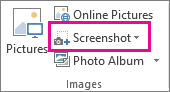
- Select the slide you want to add content into PowerPoint, and then click “Screenshot” in the “Image” group of the “Insert“.
Note: Depending on your window size, the “Screenshot” button may appear different.

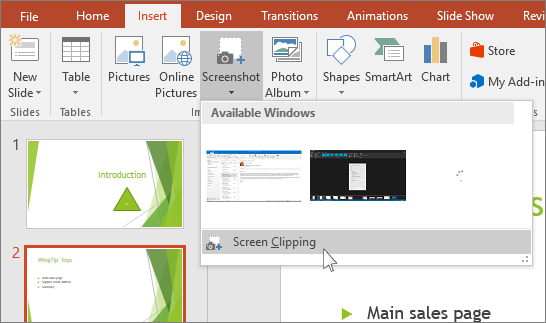
The PDF file should be the first thumbnail in the “Available Windows” list.
- Under the thumbnail image, select “Screen Clipping“. Minimize the PDF file and display the window.
- The screen displays a white-masked appearance and the pointer changes to a cross shape”+”.

- drag to draw a frame around the content you want to clip. Press “Esc” to cancel the screenshot process.
- When stop dragging, the selected area is displayed as a PowerPoint picture on the slide. You can adjust it by using the “Picture Tools Format” tab.
Tricks:
You don’t want to minimize your PDF window, and it is important for you to check that it’s the last window that you have opened, or you might fail from step one.
You need to check that everything of the PDF file you want to display is on the PDF window, or you could zoom out a little bit to capture the whole window.
In this way, you’ll only need to screenshot the PDF file and insert it as an image onto the slide of your presentation. That is the fastest way to insert PDF into PowerPoint. However, there is no function for you to edit its content on the inserted PDF image, you can only adjust its’ shape and stacking order.
Insert PDF into PowerPoint as An Object
To keep a PDF file as a support document for your presentation Insert the entire PDF into the presentation as an object that you can open and view during your presentation.
- Open PowerPoint and choose the slide you want to add PDF file.
- Tab “Insert” – “Object“, then choose “Create from file“.
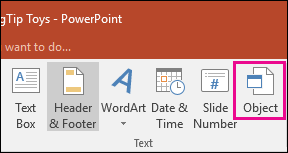
- Select “Browse” and find the PDF file, or just enter the PDF file location, and “OK”.
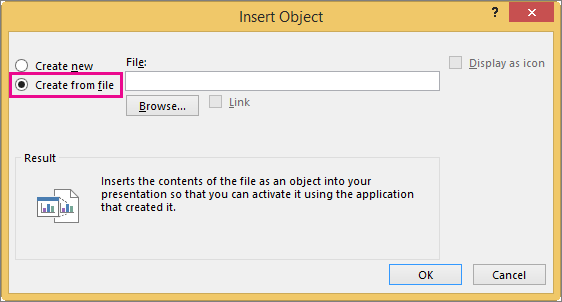
By doing this, you’ll get an icon of the PDF displayed in the PowerPoint slide. The icon links to your original PDF file. It means that you can’t move the PDF to any other location or delete it if you want to open it when using this PPT presentation. You change only change the icon image in the slide. If you accidentally put the PDF in a different place, you may wanna try to insert it again into the slide.
Insert PDF Into PowerPoint with Workintool PDF Converter
There are many available options to get the job done. Among all the countless tools out there, Workintool PDF Converter is probably one of the most convenient solutions.
- Open Workintool PDF Converter and click PDF to PowerPoint in the ToolBox.
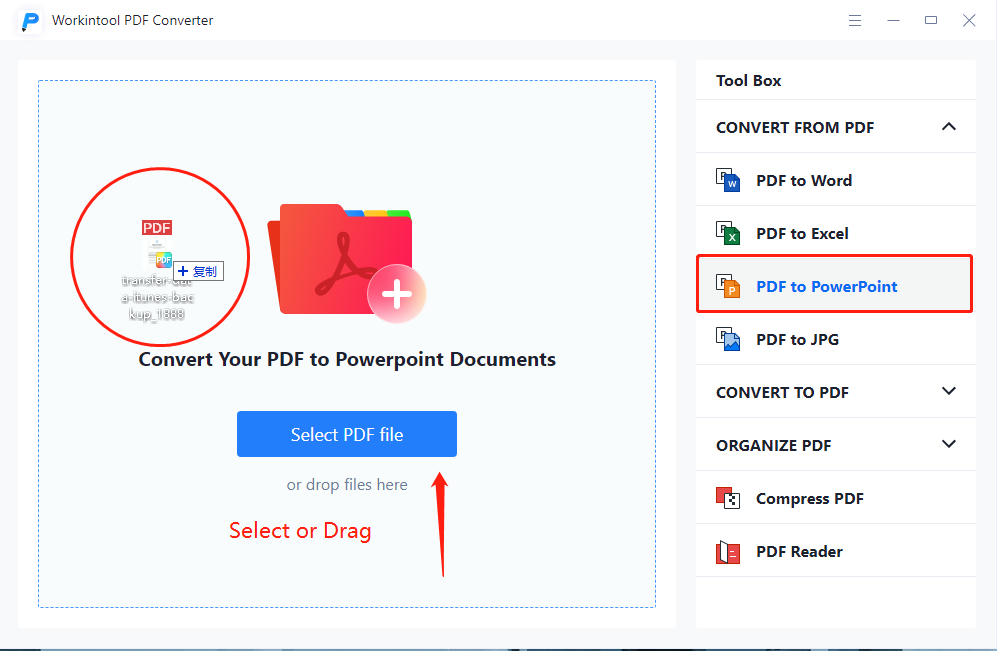
- Select PDF file or drag it into the box, and then set a saving location.
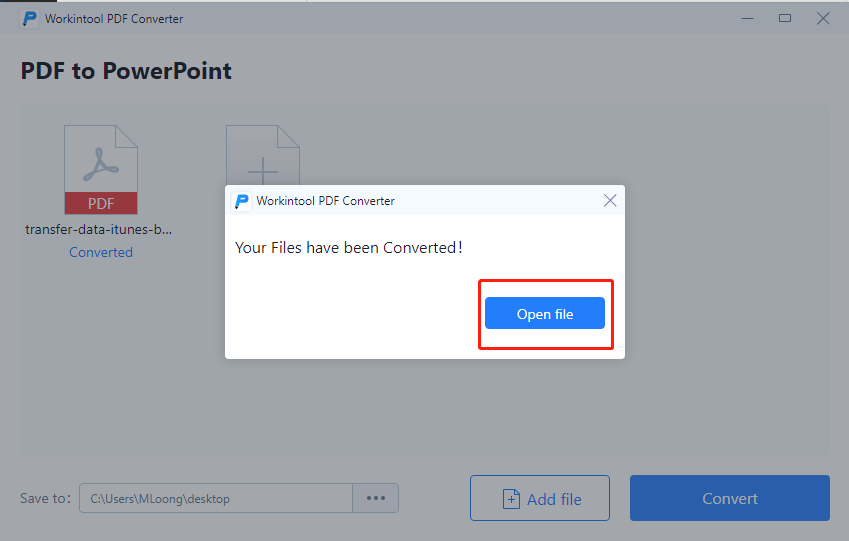
- Tab “convert” and wait for the conversion process to show success.
- Tab “Open file” to edit the new converted PPT document.
With this method, you don’t need to insert PDF, you can directly turn PDF files into PowerPoint documents. Not only saves your time to operate both PDF and PowerPoint, but also modify the content in PowerPoint considering everything that in that PDF file is here now. With Workintool PDF Converter’s PDF to PowerPoint function, no more insert screenshot images or icons linking to PDF files. Converting PDF to Powerpoint format allows you to create presentation slides easily in no time.
Will the Content of My File Change?
Nope! Once you convert PDF to PowerPoint, the contents of your file will stay exactly the same as the original and only the formatting will change a little. Once you’ve converted your PPT, your slideshows can be viewed on even more software than ever. What’s more, once the PDF file is converted, everything on the PowerPoint slides becomes editable. While you have a PPT file open, you may also edit the content as you’d like
What if I want to convert the PowerPoint document back to the PDF file?
After editing the converted PowerPoint file, you may wanna change it back to PDF format. Lucky you! We also support our users to convert PPT presentations back to PDF by clicking the second button “PPT to PDF” of our toolbox. Once you have the PPT file opened, you may freely present the data as you would normally. If you have an older version of Microsoft Office where the UI may differ slightly.
Is There Any Online Version Tool to Insert PDF into PowerPoint?
To help users more
At some point, we’ve probably all felt stuck when we saved a document as a PDF, then later needed to edit it, but lost the original Microsoft Word, Powerpoint, or Excel file. Fortunately, our tools include more than fifteen functions to help you with all of these problems. You will find all of useful our tools in the toolbox. Here are some:
- If you need to edit text from a read-only PDF file, the easiest way is to convert it to Docx format – PDF to Word
- If you need to extract tables from PDF files to then analyze the data in an Excel spreadsheet – PDF to Excel
- If you want to add a watermark onto PDF files to protect your right – Add Watermark
- If you want to delete useless pages from your PDF before converting to another format – Remove Pages
As you can see from this article, there is more than one solution to insert PDF into PowerPoint, you can choose either one of the methods above that suits you best. We hope this guide could be of help. And lastly, good luck with all of your future presentations!