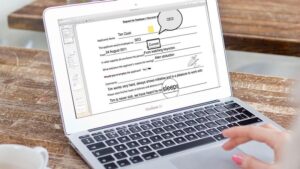
Do you ever feel trouble on how to edit a PDF on a Mac? Want to edit it free and easy? Yes, you can!
Often you’ll be required to edit a PDF on Mac or windows. Maybe you are applying for a job, making a request or working on a project. Whatever it is, it’s likely that the document you need to fill in is a PDF. This is because PDF is a universally portable format that is commonly used in a variety of places like schools & colleges, law firms, hospitals and clinics, etc. and it works on Windows, macOS, Android or iOS – and looks the same on whichever platform you open it on.
Today in this article we are going to discuss 4 methods on How to edit a PDF on Mac, especially for the downloaded PDF files, please read it below for full details.
Method 1: How to Edit a PDF with PDF Converter Free
If you are looking for a PDF Converter online free, to convert PDF into editable format with a free PDF Converter, then edit in your preferred file editor. Here are some instructions on how to make PDF editable using our tool for free, workintool PDF Converter is one of the best PDF Editors for Mac.
- Step 1. Free download and launch workintool PDF Converter on your Mac.
First click the “Free Download” button below to start downloading it. And then you need to launch it on your Mac. - Step 2. Upload PDF files to make PDF editable on Mac.
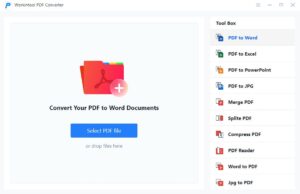
In the Converter interface, drag and drop your downloaded PDF that you need to convert to editable format i.e. word. Or you can click “Select PDF file” button to add PDF. This application allows you to batch add as many PDF as you like.
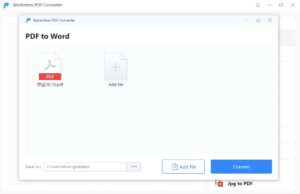
- Step 3. Start to make PDF files editable on Mac.
Just click “Convert” button to start, you will get the editable PDF within seconds, then you can edit your PDF in doc format

- Step 4. Choose the editable output that you want to save as PDF on Mac.
When you are done editing, save your document. Upload and choose in the Tool Box “word to PDF” and convert it back to PDF format.
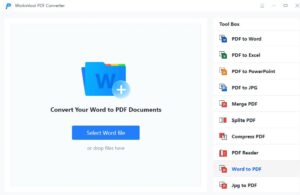
Editing PDF is usually a tedious process, but with our tool it can make your work much easier.
Other functions of workintool PDF Converter
Method 2: How to Edit a PDF on Mac free with Preview
You don’t need to download any extra software to do this, the Mac Preview software has editing functions already built in. Therefore, you can utilize Preview to view, print, rotate, resize, rename, highlight, annotate, bookmark, share, export and edit PDFs. So let’s begin.
How to make PDF editable with Preview
- Step 1: If you click on the PDF it should automatically open in Preview, right-click on the PDF choose Open with > Preview.
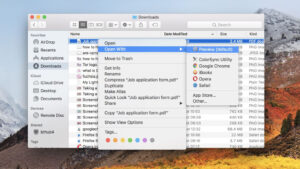
- Step 2: Click on the icon that looks like a pencil in a circle, this will open the Markup tools which include: a tool for text selection, a rectangular selection tool, sketch and draw tools, shapes, text and sign, note, shape style, and border, fill colour, and text style.

- Step 3 : You can use the various tools in Preview to add text, underline, highlight, draw on, and more to the PDF.
How to add text to a PDF on Mac
- Step 1: Either click on the icon that looks like a T with a box around it, or select Tools > Annotate > Text from the Preview menu.
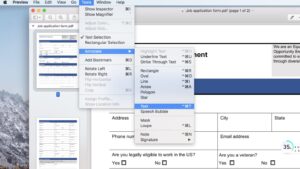
- Step 2 : A small box will appear in the center of the page with the word Text inside. This can be moved by dragging and dropping it anywhere on the page. You can also resize it to fit the layout of the PDF. Once you’re happy with the placement, just start typing.
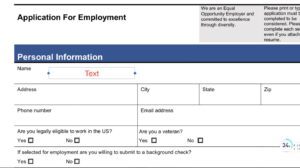
- Step 3 : If you want to change the font, size or color of your text, then click on the slanted A icon at the far right of the options in the toolbar. This will open up the standard formatting option, so you can alter the text and the justification, if it’s centered, you’d prefer it to be justified left or right, for example.
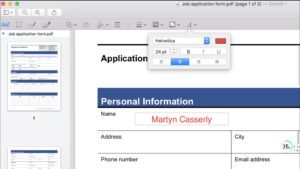
- Step 4: If you want to move text boxes around, just click on them and drag.
It’s also really simple to add your signature to a PDF as we explain here: How to sign a PDF on a Mac.
Method 3: How to Edit a PDF on Mac with Google
There is another way to edit PDF files on Mac with Google’s help. You can try to make your PDF editable online for free. Assuming you have a Google Account, you can make PDF editable with Google Docs, the platform Google helps to manage files online. Please see the steps as below.
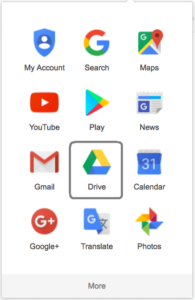
- Step 1: Login into your Google Account>Google Drive;
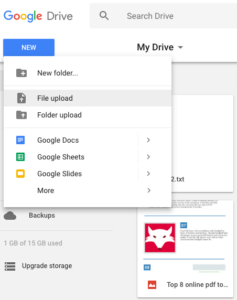
- Step 2: Click “New” >File Upload, import the PDF file that you want to make in editable format;
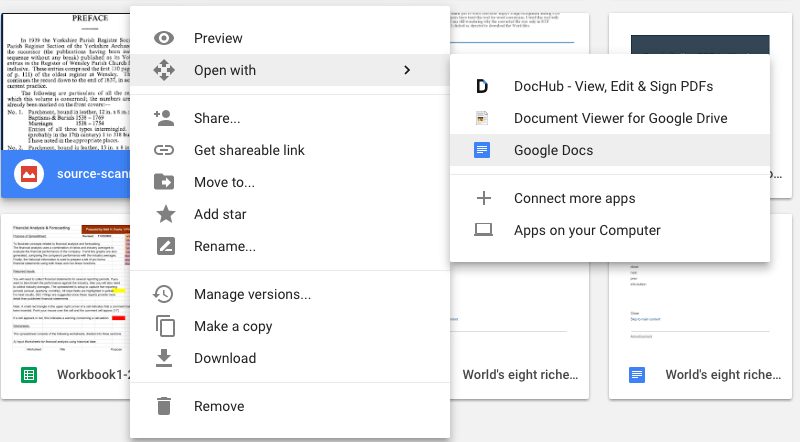
- Step 3: Once uploaded, right click to “Open with Google Docs”
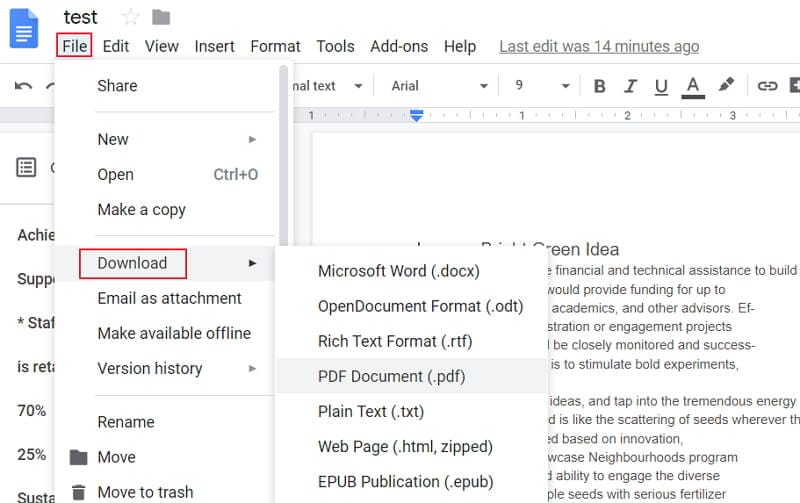
- Step 4: First edit your PDF file in Google Docs. Once the PDF file is opened, you are able to edit the text in it now. After editing, you can click the “File” > “Download” > “PDF” to save it as a PDF file on your computer again.
Note: Certain editing functions are likely missing in Google Docs, such as adding pages, deleting pages, and others.
It only supports editing text.
Method 4: If You Have Installed Adobe Acrobat
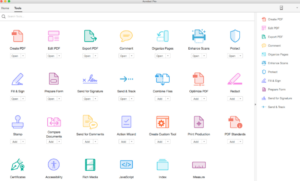
If you have installed Adobe Acrobat, you can edit PDF files on Mac within this program. Adobe Acrobat is the No. 1 PDF editor, it can edit PDF texts easily and efficiently. No matter your PDF is native or scanned, once you import it to Adobe, it becomes editable and every single word in your PDF can be edited, modified, added or deleted.
Here we take Adobe Acrobat Pro to demonstrate how to edit a PDF on Mac.
- Open PDF with Adobe Acrobat Pro;
- Go to Tools>Edit PDF, now you can edit PDF files on Mac;
- When you are done editing, then save the file. You can also go to “File” and export PDF as other editable format if you want to.
To know more details, please read this article : How to edit PDF with Adobe Acrobat
Conclusion
Above 4 methods of how to edit a PDF on Mac are all feasible, which solution do you take is up to your budget and conversion quality. If you have already installed Adobe, it’s absolutely the best means to solve your problem, but if not, the product workintool PDF Converter to convert all kinds of PDFs into editable format on Mac would be a better solution plus it’s free online and easy to edit when taking file safety, reliability and conversion quality into considerations.